
Website security is something every business owner should take seriously, whether they run a small business website, a personal blog, or a WooCommerce store. A website might look professional and work perfectly for months, but that doesn’t mean it’s protected against malware, unauthorized access, spam, or other security threats.
The good news is that you don’t need to be a cybersecurity expert to improve your website’s security. The right plugins, add-ons, and security settings can help protect your website, detect suspicious activity, and make recovery easier if something goes wrong.
However, installing every security plugin you find isn’t the answer. Different tools serve different purposes, and using too many overlapping plugins can create unnecessary complexity.
As someone who works with WordPress, Elementor, WooCommerce, plugins, hosting, and website migrations, I believe the best approach is to understand what each security tool does and choose the ones that fit your website’s needs.
In this guide, we’ll explore the essential add-ons for enhancing website security, how they work, which options are worth considering, and what else you should do to keep your WordPress website protected.
Why Is Website Security Important?
Your website may contain valuable information, business content, customer accounts, contact forms, or e-commerce functionality. If someone compromises it, the consequences can go far beyond a temporary technical problem.
A security incident can result in:
- Unauthorized access to your WordPress dashboard.
- Malware or malicious code being added to your website.
- Customer accounts or website data being exposed.
- Spam pages or redirects appearing on your domain.
- Website downtime and lost sales.
- Damage to your business reputation.
- Time and money spent cleaning and restoring the website.
For a WooCommerce store, the risks can be especially disruptive. Customers expect a reliable shopping experience, and suspicious redirects, broken checkout pages, or unexpected downtime can affect their confidence in your business.
WordPress itself has a dedicated security team, but the overall security of a website also depends on its themes, plugins, hosting environment, passwords, and maintenance practices. The official WordPress security guidance recommends measures such as keeping software updated, removing unused plugins, and using appropriate firewall protection.
The goal isn’t to make your website impossible to attack. No security tool can guarantee that. The goal is to reduce risks, identify problems early, and make recovery possible.
1. WordPress Security Plugins
A dedicated security plugin is one of the first add-ons I’d consider for a WordPress website.
These plugins can combine several protective features, including firewall rules, malware scanning, login protection, suspicious activity alerts, and security checks.
Instead of manually monitoring every part of your website, a security plugin can automate many routine tasks.
What should a security plugin include?
When comparing options, look for features such as:
- Firewall protection: Helps block malicious requests before they cause harm.
- Malware scanning: Checks website files for suspicious code and known threats.
- Login protection: Helps defend against repeated password-guessing attempts.
- Two-factor authentication: Adds another verification step during login.
- File integrity monitoring: Alerts you to unexpected changes in important files.
- Security notifications: Helps you respond when something suspicious happens.
Not every plugin includes all these features in its free version, so check the current feature list before installing one.
Which WordPress security plugins are worth considering?
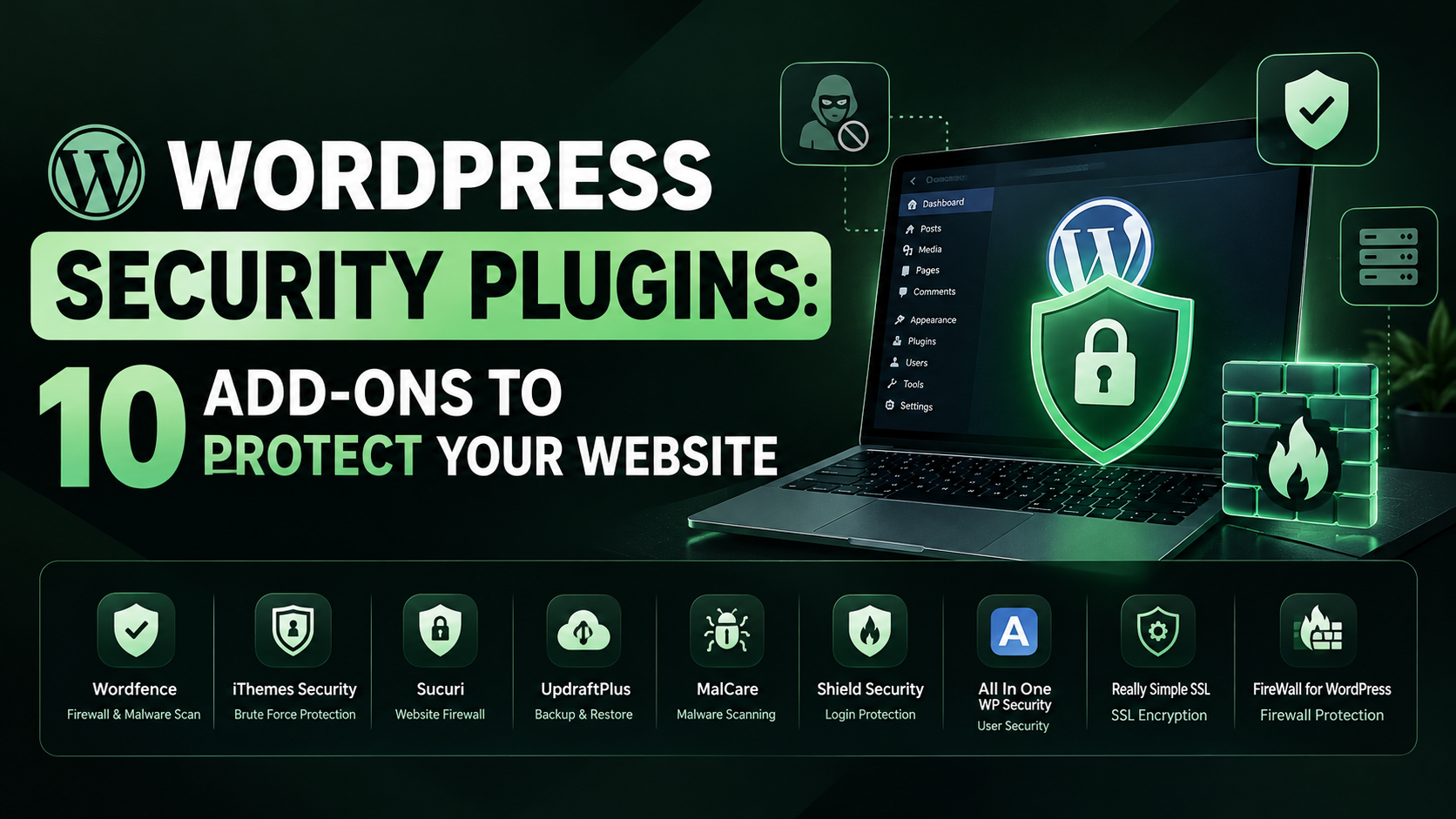
1. Wordfence Security
Best for all-in-one WordPress protection
Wordfence combines a WordPress firewall, malware scanner, login security, and security alerts. It is a reasonable starting point for site owners who want several security features in one plugin. The free and paid versions differ in their threat intelligence and other features.
2. Solid Security
Best for account security and hardening
Solid Security has been known for login protection, two-factor authentication, and WordPress hardening features. Check the current product name, availability, and support arrangements before choosing it, as product branding and ownership have changed.
3. Sucuri Security
Best for monitoring and additional security services
Sucuri’s WordPress plugin offers security monitoring and hardening features. Its website firewall is a separate service, so don’t assume installing the free plugin automatically gives you the full cloud firewall.
My recommendation: Start by identifying which features your website needs, then choose one primary security solution that covers them. You don’t need to install all three.
A plugin is only useful when it’s properly configured and maintained. Simply activating it and never checking its alerts defeats much of the purpose.
2. A Web Application Firewall (WAF)
A web application firewall, commonly called a WAF, helps filter incoming web traffic and block requests that match malicious patterns.
Think of it as a security checkpoint between visitors and your website.
Depending on the implementation, a WAF may help defend against malicious requests, automated attacks, and certain attempts to exploit website vulnerabilities.
There are two important approaches to understand.
Plugin-based firewall
Some WordPress security plugins filter requests at the WordPress application level. They can be convenient because they integrate with your existing security dashboard.
However, requests may already have reached your hosting environment before the firewall processes them.
Cloud-based firewall
A cloud-based service sits in front of your website and filters traffic before it reaches your origin server.
Options include Cloudflare and Sucuri’s website firewall service. Depending on the plan, these services can offer traffic filtering, DDoS mitigation, and other protections.
Cloudflare also offers a CDN, which can improve content delivery while providing additional network-level protections.
Do you need a WAF?
I’d seriously consider one for a business website, particularly if it receives substantial traffic or is important to daily operations.
For a WooCommerce store, additional protection can be worthwhile because downtime or malicious traffic may interfere with sales.
Keep in mind that a WAF isn’t a replacement for updates, secure passwords, or malware detection. No firewall blocks every threat, and configuration matters.
3. Two-Factor Authentication (2FA)
A strong password is essential, but it isn’t the only protection your WordPress login should have.
Two-factor authentication adds another verification step when someone signs in. Depending on the implementation, this might involve an authenticator app, a security key, or another supported verification method.
Even if someone obtains a user’s password, they may be unable to sign in without the second factor.
This is especially important for administrator accounts because they can make significant changes to the website.
What should you protect with 2FA?
At a minimum, consider enabling it for:
- WordPress administrators.
- Store managers and other privileged users.
- Hosting and domain accounts.
- Accounts with access to backups or payment-related systems.
For a business with several employees, use individual accounts instead of sharing one administrator login.
An important distinction: 2FA protects account access. It does not prevent every type of attack, such as exploitation of a vulnerable plugin. It should be one layer of your security strategy, not the entire strategy.
4. Malware Scanning and Vulnerability Detection
Malware scanning helps identify suspicious files, known malicious code, and other indicators of compromise.
Vulnerability detection serves a related but different purpose: it identifies outdated or vulnerable software that may expose your website to known security issues.
These two features are often confused, but they solve different problems.
- Malware scanning looks for signs that a website may already be compromised.
- Vulnerability detection looks for weaknesses that an attacker might exploit.
Some security plugins provide both capabilities. Dedicated vulnerability monitoring tools can also be useful if you manage multiple websites or need more specialized protection.
When evaluating a scanner, check how frequently it runs, what it actually examines, whether it checks themes and plugins, and what happens when it finds something.
A detection alert doesn’t necessarily mean a threat has been removed.
Likewise, a clean scan doesn’t prove that a website is completely safe. Scanners have limitations, and some threats can be difficult to detect.
For a business website, I’d enable scheduled scans and security notifications where available, then investigate serious warnings instead of ignoring them.
5. Automated Website Backups
Backups are one of the most important parts of website security, even though they don’t prevent attacks directly.
If your website is hacked, damaged by a faulty update, or accidentally altered, a clean backup may help you restore it.
Without a reliable backup, recovery can become much more difficult.
For WordPress websites, a complete backup should generally include:
- Website files.
- Themes and plugins.
- Uploaded media.
- The WordPress database.
- Relevant configuration and store data.
For WooCommerce websites, database backups are especially important because orders, customer accounts, and other store information may change frequently.
Which backup add-ons should you consider?
UpdraftPlus
UpdraftPlus supports scheduled backups and remote storage integrations, depending on the configuration and plan. It’s a useful option for site owners who want to manage backups from WordPress.
Other options include backups provided by your hosting company or a managed backup service.
What matters more than the plugin name?
The backup needs to be usable when you need it.
I recommend keeping copies somewhere separate from the website itself and testing the restoration process periodically. A backup stored only on the same compromised server may not be sufficient.
For WooCommerce, also consider how you’ll handle orders placed after the backup was created. Restoring an older database without a recovery plan can overwrite newer store data.
A backup is valuable only if you can restore the website without creating a bigger problem.
6. SSL Certificates and HTTPS

An SSL/TLS certificate enables HTTPS, which encrypts data exchanged between a visitor’s browser and your website.
This is particularly important when users log in, submit forms, or interact with an online store.
Without HTTPS properly configured, information exchanged with the website may be exposed to interception in situations where an attacker can observe or manipulate the connection.
Most reputable hosting providers offer SSL certificates, and free certificates are available through services such as Let’s Encrypt.
Before purchasing a separate SSL add-on, check whether your hosting provider already includes one.
What should you check?
- The certificate is valid and covers the correct domain.
- The website loads over HTTPS.
- HTTP requests redirect to HTTPS where appropriate.
- Images, scripts, and other resources don’t cause mixed-content warnings.
- Renewal is configured correctly.
An SSL certificate is not a malware scanner, a firewall, or a complete website security solution. It protects data in transit; it doesn’t stop someone from exploiting an outdated plugin or stealing an administrator password.
For e-commerce websites, HTTPS is essential, but you should also use reputable payment integrations and avoid storing sensitive payment information unnecessarily.
7. Login Protection and Brute-Force Prevention
Automated bots often attempt to sign in using repeated username and password combinations.
A login-protection add-on can limit repeated failed attempts, slow automated guessing, and help reduce suspicious login activity.
One option is Limit Login Attempts Reloaded.

It helps restrict repeated failed login attempts and provides a straightforward way to add a layer of protection to WordPress login pages.
You can also look for login protection within your primary security plugin, since several security products already include this feature.
Other ways to improve login security
- Use unique, strong passwords.
- Enable 2FA for privileged accounts.
- Remove unused administrator accounts.
- Avoid sharing login credentials.
- Use appropriate user roles and permissions.
- Review alerts about suspicious login attempts.
Changing the default login URL is sometimes suggested as an additional measure, but it shouldn’t be treated as a substitute for strong authentication.
Also, don’t assume that blocking repeated login attempts will stop someone exploiting a vulnerable plugin. Login protection addresses one category of attack, not every route into a website.
8. Spam and CAPTCHA Protection

If your WordPress website has contact forms, registration forms, comments, or public-facing submissions, spam protection can help keep automated abuse under control.
Spam can overwhelm your inbox, fill your database with unwanted entries, and make legitimate submissions harder to identify.
Depending on the website, useful add-ons may include:
- Akismet.
- CAPTCHA or challenge-based verification.
- Form plugins with built-in anti-spam features.
- Rate limiting for frequently abused forms.
For example, a service-based business using Elementor forms may receive repeated fake inquiries. A suitable anti-spam solution can reduce unwanted submissions and help the team focus on genuine leads.
For WooCommerce, registration and review spam may also be worth addressing.
The important thing is to match the protection to the problem. CAPTCHA can introduce friction for real visitors, so avoid adding unnecessary challenges to every page.
Spam protection also isn’t the same as malware protection. It helps defend public forms and submission systems from abuse, but it doesn’t replace a security plugin or firewall.
9. User Permissions and Access-Control Add-Ons
Not everyone who works on your website needs administrator access.
A content writer may only need permission to create and edit posts. A store employee may need access to specific WooCommerce functions. A developer may require temporary access to troubleshoot a problem.
Giving everyone full administrator privileges increases the potential damage if an account is compromised or someone makes a mistake.
WordPress already includes user roles and capabilities, so you may not need an additional plugin for a small website.
For more complex teams, a permissions plugin such as Members can help customize roles and capabilities.

Use role-management tools when the default WordPress permissions don’t meet your requirements.
My recommendation is simple: give users only the access they need, use individual accounts, and remove access when it is no longer required.
An extra permissions plugin isn’t automatically necessary, and it must be maintained like any other component.
10. Activity Logs and Security Monitoring
If several people manage your website, it can be useful to know what changed and when.
An activity log records events such as user logins, content changes, plugin updates, and other supported actions.
This can help you investigate questions such as:
- Who changed a particular setting?
- When was a plugin installed?
- Which account modified a page?
- When did an unexpected change begin?
- Did an administrator account perform an unfamiliar action?
Some security plugins include activity monitoring, while others require a dedicated logging add-on.
For a small website managed by one person, a separate activity log may not be essential. For a busy business website or WooCommerce store managed by multiple users, it can be more valuable.
Remember that logs need appropriate retention and access controls. If an attacker gains administrator or server access, locally stored logs may also be altered or deleted. For higher-risk websites, consider sending important logs to a separate service.
11. Secure Hosting and Server-Level Protection
Security doesn’t begin and end with WordPress plugins.
Your hosting environment is another important layer. A well-managed host may offer server-level firewalls, malware monitoring, account isolation, automatic updates, backups, and other protections.
When choosing hosting, ask about:
- PHP and server software updates.
- Isolation between hosting accounts.
- Malware detection and incident response.
- Backup frequency and retention.
- Restore options.
- SSL support.
- Server-level firewall protection.
- Access controls and support availability.
This is especially important if you’re responsible for hosting configuration or migrating a WordPress website.
For example, a WordPress security plugin might detect a suspicious file, but it cannot necessarily resolve an insecure server configuration or prevent every problem caused by a compromised hosting account.
Choose hosting appropriate for the website’s needs, and understand which security responsibilities belong to the provider and which remain yours.
Which Security Add-Ons Should You Install First?
You don’t need every tool mentioned in this guide. The best combination depends on your website, budget, hosting setup, and the information or functionality you need to protect.
Here is a practical starting point.
| Website type | Recommended security priorities |
|---|---|
| Personal blog | Primary security plugin, 2FA, backups, updates, spam protection |
| Small business website | Security plugin, firewall, backups, 2FA, HTTPS, form protection |
| WooCommerce store | Security plugin, firewall, frequent backups, 2FA, HTTPS, restricted user access, monitoring |
| Website managed by a team | Login protection, role management, activity logs, backups, security alerts |
| High-traffic or business-critical website | Layered security, managed hosting, external monitoring, tested recovery procedures, professional incident response |
These are starting points, not rigid rules. Some features may already be provided by your host or primary security product.
For example, if your security plugin already offers login protection, you may not need a second plugin to perform the same task.
The goal is to cover important security gaps without adding unnecessary software.
Common Mistakes to Avoid When Installing Security Plugins
Even useful security tools can cause problems if you choose or configure them poorly.
Installing multiple plugins that do the same job
Running several overlapping firewalls or scanners can lead to conflicts, duplicate alerts, and unnecessary resource usage.
Choose a primary security solution and add other tools only when they provide a distinct benefit.
Assuming a plugin guarantees security
No plugin can promise complete protection. Vulnerabilities, configuration errors, compromised credentials, and hosting problems can still put your website at risk.
Ignoring updates
Outdated WordPress core software, themes, and plugins can leave known vulnerabilities unpatched.
Remove plugins and themes you no longer need, and update the remaining software promptly after checking compatibility and having a recovery plan. WordPress’s official hardening guidance specifically recommends keeping plugins updated and deleting unused ones.
Never testing backups
A successful backup notification doesn’t prove that the website can be restored correctly.
Test your restoration procedure in a safe environment.
Ignoring security alerts
Alerts are only useful if someone reviews and acts on them.
Configure notifications to reach a monitored email address or appropriate team member.
Installing untrusted add-ons
Before installing a plugin, check its maintenance history, compatibility, documentation, support, reputation, and whether it comes from a trustworthy source.
WordPress.org maintains guidelines for plugins distributed through its directory, but you should still evaluate the suitability and maintenance of each plugin you install.
A Simple WordPress Website Security Checklist
Use this checklist as a starting point when securing a new website or reviewing an existing one.
Core protection
Install and configure one suitable primary security plugin. Enable an appropriate firewall. Enable two-factor authentication for administrator accounts. Use strong, unique passwords.
Maintenance and recovery
Keep WordPress, themes, and plugins updated. Remove unused plugins and themes. Schedule off-site backups. Test website restoration.
Website and account security
Confirm HTTPS and SSL are working correctly. Review user roles and remove unnecessary access. Enable spam protection where needed. Configure security alerts and review them regularly.
Hosting and monitoring
Check hosting security and backup policies. Monitor for malware and vulnerable software. Keep important recovery information accessible securely. Document who to contact if the website is compromised.
Copy checklist Reset
For a business-critical website or online store, consider having a qualified WordPress professional review the configuration rather than relying entirely on a checklist.
What Should You Do If Your WordPress Website Gets Hacked?
Security add-ons reduce risk, but you should also have a plan for responding to an incident.
If you suspect a compromise:
- Contact your hosting provider. Ask whether the server or other sites in the hosting account may be affected.
- Protect your accounts. From a clean device, secure your hosting, domain, WordPress, and relevant administrative accounts. Revoke suspicious sessions and rotate compromised credentials.
- Preserve evidence where possible. Keep relevant logs and a copy of the affected site for investigation before deleting files or restoring backups.
- Identify the entry point. A cleanup that ignores the original vulnerability may leave the website open to another attack.
- Clean and restore carefully. Use a known-clean backup or qualified malware-removal assistance, and verify the site before bringing it fully back online.
- Patch the underlying problem. Update or remove vulnerable components and review user access and hosting configuration.
- Monitor after recovery. Check for suspicious activity and signs of reinfection.
For a WooCommerce store, also assess whether customer information or order data may have been exposed. Follow applicable legal, contractual, and payment-provider notification requirements where relevant.
Avoid assuming that deleting one suspicious file or installing another security plugin will completely resolve the incident.
Final Thoughts
Enhancing website security isn’t about installing the largest number of plugins. It’s about choosing the right tools and using them as part of a consistent security strategy.
For most WordPress websites, I’d start with a suitable security plugin, strong login protection, two-factor authentication, reliable off-site backups, HTTPS, and a clear update routine. A firewall, malware monitoring, activity logs, and additional access controls can provide further protection depending on the site’s needs.
For WooCommerce stores and business-critical websites, I’d pay particular attention to recovery procedures, administrator permissions, hosting security, and monitoring.
My overall advice is to focus on security layers rather than individual plugins. A well-maintained website with a few properly configured tools is often in a better position than a website overloaded with add-ons that nobody monitors.
Security is an ongoing process, not a one-time installation. Review your setup regularly, respond to warnings, and make sure you know how to recover if something goes wrong.
For success stories. Visit ITISH.
For About. Visit About
Visit Solaytic